Perfmatters Review
WordPress Speed and overall performance is a topic I cover all the time both here on my website, in my work, and on my YouTube channel. Having a fast-loading website isn't just important for SEO it's very important for user experience. Perfmatters acts as a companion plugin to an existing caching plugin such as WPRocket. Of course, whether you're using WPRocket or another caching plugin you might be wondering why you would want or need an additional plugin like Perfmatters and I am going to break down what this plugin does and why I recommend it.
What is Perfmatters?
To start, let's address what Perfmatters is and what it isn't. Perfmatters is not a caching plugin infact, it doesn't offer any of the traditional features you would find in a caching plugin. Instead, it acts as a companion allowing you to "cleanup" your site to reduce page weight by removing assets, and other unused features.
Essentially its a script manager, and a one click settings panel to turn off unused features in WordPress. This plugin doesn't replace the need of a caching plugin like WPRocket and you should still use some sort of caching plugin to do additional asset optimizations.
What Are The Features In Perfmatters?
Perfmatters comes with quite a few features out of the box not all of which are directly performance related and some that are just made to manage plugin settings easily (such as the import & export tool). I am going to list each of the primary features (found at the time of writing) and a quick description of what it does below.
Any feature marked with a * means it will have a direct impact on your pages performance.
- Disable Emojis*: This feature disables all assets related to emojis in WordPress (including removing the pesky JS file, inline CSS, and DNS prefetch request).
- Disable Embeds*: Disable's the WordPress Embeds JS (this file allows your site's blog posts to be embedded into other website's blog posts and it's very rarely used so I recommend disabling it).
- Disable XMLRPC: This feature simply disables XMLRPC which is really only used by Jetpack if you're not using Jetpack you can almost always disable this feature to prevent brute force attacks.
- Remove jQuery Migrate*: Starting in WordPress 5.7 this feature does nothing since WordPress 5.7 no longer includes the jQuery Migrate script!
- Hide WP Version: This feature removes the wp generator tag to hide your WordPress version.
- Remove wlwmanifest Link: This feature simply removes the windows live writer manifest link from the header of your site. If you have no idea what windows live writer is (which is probably most of you), you can safely enable this option.
- Remove RSD Link: This feature removes the really simple discovery header from your website. This is used for trackbacks and pingbacks and relies on XMLRPC unless you need XMLRPC you can disable this feature.
- Remove Shortlink: Removing the short link from the header does just that if you have jetpack it can create a short link using the WordPress URL shortener in your header. Most sites never use this feature and it can be disabled.
- Disable RSS Feeds: Disable RSS feeds disables all RSS feeds on the website I don't recommend enabling this feature.
- Remove RSS Feed Links: Unlike the above feature, this keeps RSS feeds enabled but removes the links from the site header which can be useful at preventing bots from scraping your feeds while keeping the feeds themselves enabled.
- Disable Self Pingbacks: Disable self-pingbacks will prevent the site from pinging itself if you have pingbacks enabled. My recommendation is to disable pingbacks and trackbacks altogether since it's mostly used for spam.
- Disable REST API: If you're not using the WordPress Rest API you can disable it with this option. My recommendation is unless you're sure that you're not using the API leave it enabled.
- Remove REST API Links: This feature keeps the REST API enabled but removes links from the header. This can be useful for stopping third-party bots from trying to determine a user's username.
- Disable Dashicons*: One of my favorite features, this one prevents Dashicons from loading on the frontend for non-logged-in users. This reduces page weight since the Dashicons CSS library is quite large and often times it's loaded and completely unused (for Divi users this feature will help you quite a bit).
- Disable Google Maps*: This feature prevents the Google Maps API JS from loading on your website. Rarely some themes will load this library even if you're not declaring an API Key. In which case you can use this feature to remove the library altogether. However, if you are using a map with the JS library and enable this feature all of your maps will break.
- Disable Google Fonts*: This feature removes all google fonts on your frontend. This feature can greatly improve the performance of your page if you're loading many Google Fonts. However, it will simply use whatever default font your system recommends as a fallback so your appearance will change substantially on the frontend. I almost never use this feature.
- Disable Password Strength Meter*: This feature is useful for WooCommerce sites. This will prevent the Password Strenght Meter JS from being loaded on the frontend themes such as Enfold load this JS everywhere all the time. Removing this feature can remove upwards of 400KB of compressed JavaScript from the frontend leading to some gains in your paint times and total blocking times.
- Disable Comments: Enabling this option simply disables comments site-wide (removes the need to use something like disable comments).

Scott Hartley
Founder & CEO, Sert Media
Founder and CEO of Sert Media, a Nashville-based digital marketing agency. Scott has spent over 15 years helping businesses grow through SEO, web performance optimization, and strategic digital marketing. His deep expertise in WordPress development, site speed, and technical SEO has guided hundreds of brands toward measurable results. When he's not auditing Core Web Vitals or refining campaign strategies, he's writing about the tools, techniques, and trends shaping the modern web.
Related Articles
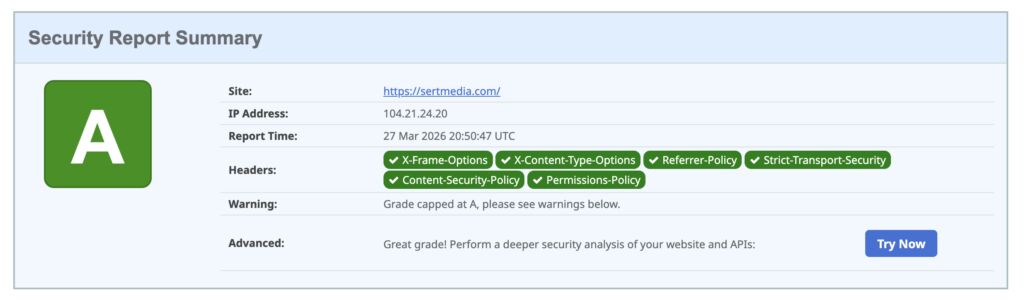
How to Add Security Headers to WordPress Using Cloudflare Transform Rules
If you've ever run your WordPress site through securityheaders.com and gotten a D or F…

Use This Cloudflare Rule To Reduce Plugin Hack Attempts
Cloudflare Firewall Rules give you a lot of flexibility in further protecting your website. Here…

Set Up Cloudflare's Automatic Platform Optimization Feature
Automatic Platform Optimization (APO) is a new feature from Cloudflare that allows you to cache…